
Kairon
  • Kairon 4.24
  • About Us
  • Contact
  • English
    • Deutsch
  • Click to open the search input field Click to open the search input field Search
  • Menu Menu
  • Link to Facebook
Basics, Manuals

Back to the Settings Menu

Here we can change everything, and I will perform a few rudimentary changes to make this software more friendly for me.

Let us deal with those Arabic Parts first. 

The ‘Font Style Generator’ is where these can be adjusted.
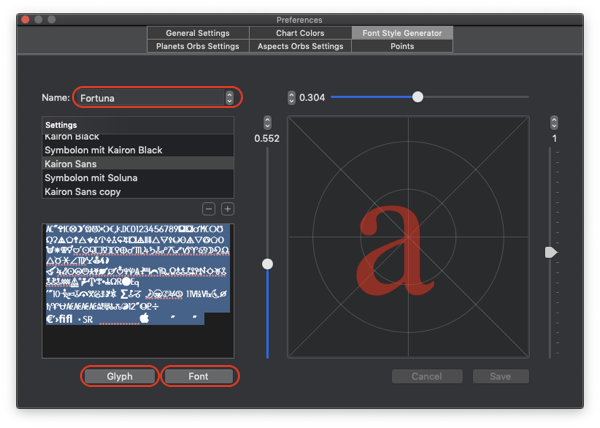
These steps must be done in order to work at all. 

Clicking the down arrow on the Font Stye Generator twice will find ‘Fortuna’ (clicking once will get Spirit which I have already done to get the method fresh in my mind).

Clicking on the ‘Font’ button will bring up the system Font menu. I have selected the font ‘Kairon Semiserif’ and by default it is in size 14.

Clicking on the ‘Glyph’ button will show you the glyphs in that font, and to see them easily I need to view them at size 24 which must be selected in the system font menu while you have all the glyphs selected.
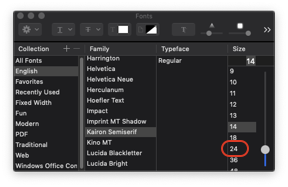
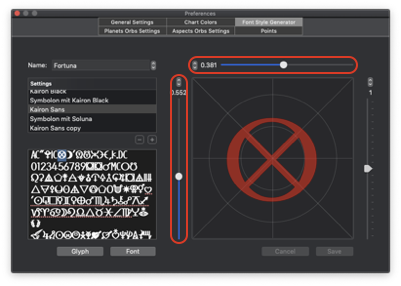
Once you have identified the symbol you would like to use (I chose the well known Part of Fortune symbol for this one) simply drag it onto the field on the right. Adjust it on the cross hairs with the adjustments directly above and also to its left. Adjust its overall size to its right.

Congratulations you have worked out how to change any symbol in your chart!

The changes made must be saved. If the ‘Save’ and ‘Cancel’ buttons are greyed out, try first to use any of the adjustment steppers, if that does not work restarting the software will be necessary.

A second way to do the same thing but which will allow you to use any image that you have access to. 

You can use anything you like here. Basically if you can select it you can drag and drop it (or copy-paste if you prefer). I found a symbol which reminds me of the old symbol for Uranus. (it is actually a symbol for Transpluto or Isis, but it looks pretty.)

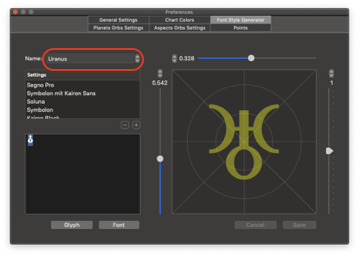
To empty the field on the left, select all while the cursor is in that field and delete.

To get to Uranus I stepped though everything until I found it. 

The picture at the top shows the selected glyph. Dragging it to the empty field on the left makes it the only thing in that field.
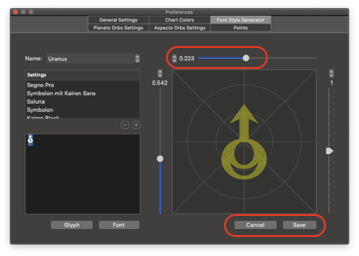
Dragging it from the field on the left onto the field on the right changes the glyph. Minor adjustments will need to be made using the steppers for position and size.

The Cancel button will return the glyph to its previous default, the Save button will lock it in as the new default. Again if those buttons are greyed out Kairon will need a restart.

So that is how you can change any glyph. 

If you are fond of many asteroids and have a supply of images there are very few limits to your creativity.

March 26, 2020/0 Comments/by Rodney Smith
Tags: Basics
https://kairon.at/Kairon4/wp-content/uploads/2024/06/LogoKairon4_text-2-300x138.png 0 0 Rodney Smith https://kairon.at/Kairon4/wp-content/uploads/2024/06/LogoKairon4_text-2-300x138.png Rodney Smith2020-03-26 10:41:072020-04-01 04:44:34Back to the Settings Menu
You might also like
Selecting Objects in Kairon 4
About those Aspects
Colours: The last of the ‘set up’ help files.
Kairon 4 from the beginning
Basics of data entry
First settings
0 replies

Leave a Reply

Want to join the discussion?
Feel free to contribute!

Leave a Reply Cancel reply

Your email address will not be published. Required fields are marked *

Tutorials

  • Videotutorials
  • Data Structure
  • Data Import
  • Backup
  • Kairon 4 from the beginning
  • Basics of data entry
  • First settings
  • Selecting Objects in Kairon 4
  • About those Aspects
  • Colours: The last of the ‘set up’ help files.
  • Back to the Settings Menu
  • Custom Symbols
  • Synastries
  • Asteroids
  • Midpoint-Trees
  • Helptexts and Interpretations
  • AI Interpretation

Company

Mag. Kilian Sternad
Hochstraße 11/14
1230 Wien

Legal

  • GDPR
  • Imprint
  • Contact

Archive

  • February 2026 (1)
  • November 2024 (1)
  • August 2023 (1)
  • April 2020 (1)
  • March 2020 (9)
  • January 2020 (3)
  • December 2019 (1)

Language

  • English
  • Deutsch
© Kairon K.S.
  • Link to Facebook
  • GDPR
  • Imprint
  • Contact
Link to: Asteroids Link to: Asteroids Asteroids Link to: About those Aspects Link to: About those Aspects About those Aspects
Scroll to top Scroll to top Scroll to top

Diese Seite verwendet Cookies. Mit der Weiternutzung der Seite, stimmst du die Verwendung von Cookies zu.

Einstellungen akzeptierenVerberge nur die BenachrichtigungEinstellungen

Cookie and Privacy Settings


How we use cookies

We may request cookies to be set on your device. We use cookies to let us know when you visit our websites, how you interact with us, to enrich your user experience, and to customize your relationship with our website.

Click on the different category headings to find out more. You can also change some of your preferences. Note that blocking some types of cookies may impact your experience on our websites and the services we are able to offer.

Essential Website Cookies

These cookies are strictly necessary to provide you with services available through our website and to use some of its features.

Because these cookies are strictly necessary to deliver the website, refusing them will have impact how our site functions. You always can block or delete cookies by changing your browser settings and force blocking all cookies on this website. But this will always prompt you to accept/refuse cookies when revisiting our site.

We fully respect if you want to refuse cookies but to avoid asking you again and again kindly allow us to store a cookie for that. You are free to opt out any time or opt in for other cookies to get a better experience. If you refuse cookies we will remove all set cookies in our domain.

We provide you with a list of stored cookies on your computer in our domain so you can check what we stored. Due to security reasons we are not able to show or modify cookies from other domains. You can check these in your browser security settings.

Other external services

We also use different external services like Google Webfonts, Google Maps, and external Video providers. Since these providers may collect personal data like your IP address we allow you to block them here. Please be aware that this might heavily reduce the functionality and appearance of our site. Changes will take effect once you reload the page.

Google Webfont Settings:

Google Map Settings:

Google reCaptcha Settings:

Vimeo and Youtube video embeds:

Einstellungen akzeptierenVerberge nur die Benachrichtigung