Kairon
  • Kairon 4.24
  • About Us
  • Contact
  • English
    • Deutsch
  • Click to open the search input field Click to open the search input field Search
  • Menu Menu
  • Link to Facebook
Basics, Manuals

Custom Symbols

A newly added object is represented by some generic glyph, in this case here it is a capital “A”. You can replace this with any character of any font installed on your computer and set the displayed size exactly.

To do this, open the “Settings” dialog and click on “Font Style Generator” to access the symbol selection:
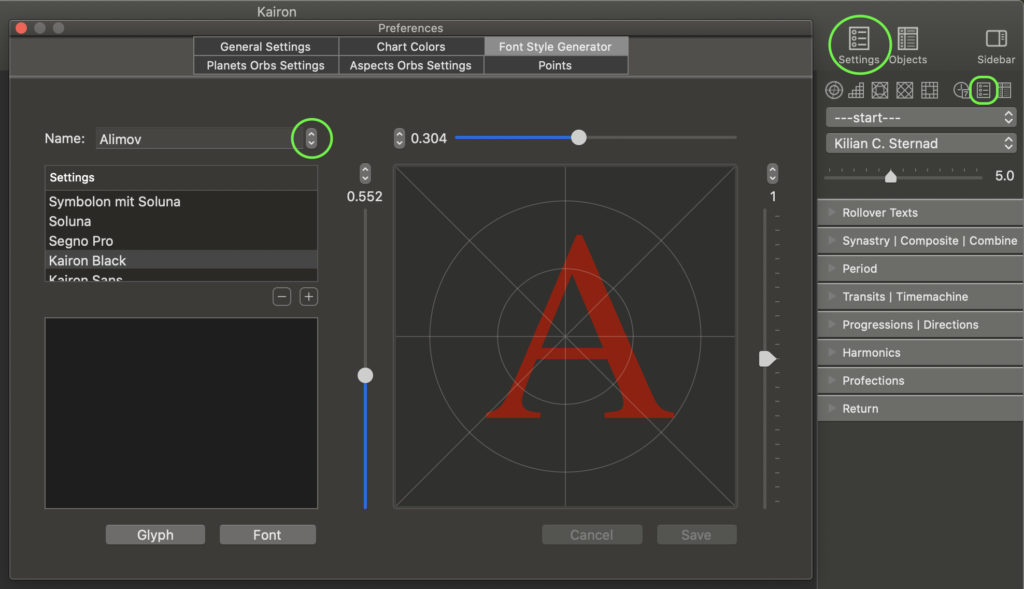
Selecting the symbol to edit in Font-Style-Generator in Kairon4

Use the stepper (circled here) to navigate to the name of the asteroid whose symbol you want to choose. If it has been added, a click downwards on the stepper takes you directly there.

The key to the new symbol is located in the text box at the bottom left above the “Sign” and “Font” buttons. Use drag and drop to drag a selected symbol onto the red “A” (as shown in this example).

For example, you can first drag a symbol from any text into the left text field above “Glyph” and “Font”, which makes it available for Kairon4, and thence move it in a second step into the field to the right onto the red “A”. The output size is completely irrelevant here.
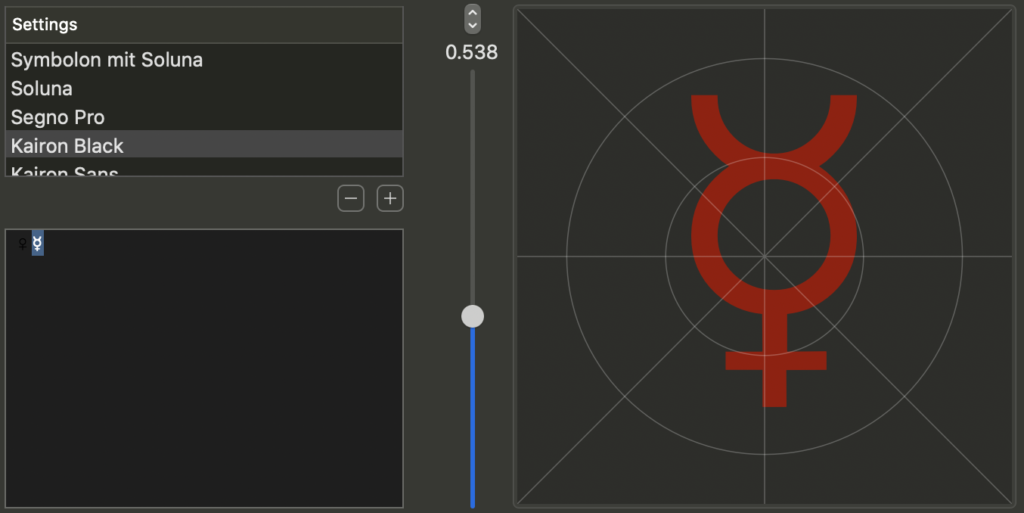
Copy-Dragging any Symbol using the Font-Style-Generator in Kairon4

Or, you first click on the “Glyph”-button, which fills the text field with letters, then on the “Font”-button, which calls up the Font dialog, and then select an available font, as in the example below “Segno Pro”. Scaling up the marked characters it will become easier – and change the color accordingly, so that you can see something. However, the final color is not set here, but when you click the icon next to the checkbox in the “Objects” dialog under “Asteroids”, which can be done before or after choosing a custom symbol.
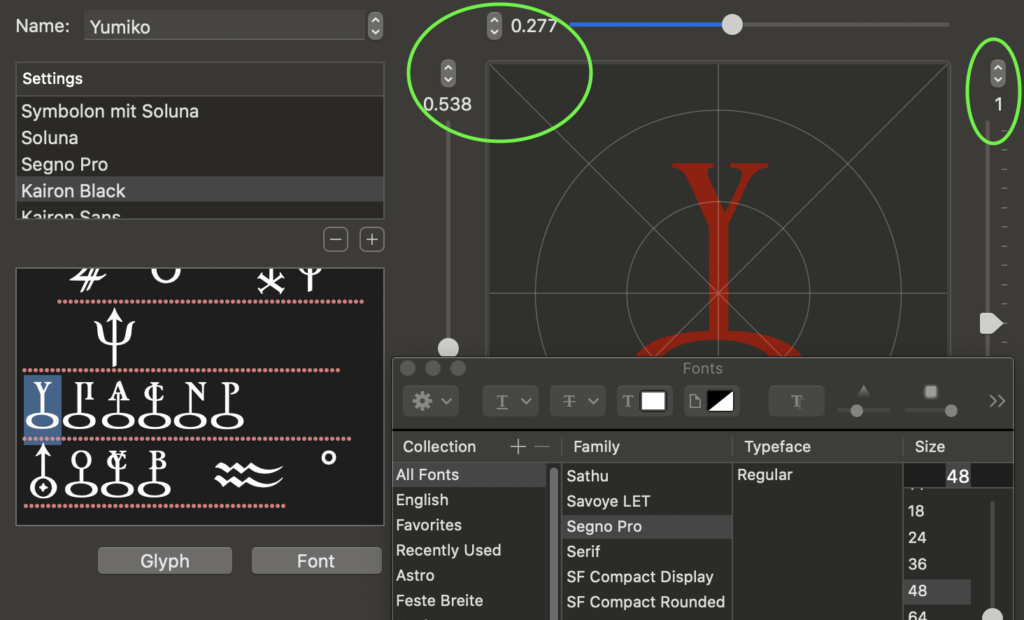
Listing Kairon4's own symbols using the Font-Style-Generator

With the circled two steppers or the associated sliders at the top and to the left of the symbol you determine its position in the crosshairs, with the stepper or slider to the right of it you edit its size.

There are two buttons below the symbol: “Cancel” returns to the last saved value, “Save”, on the other hand, fixes your current selection.

Errata

If one day you discover any strange letters in the horoscope wheel, you have most likely deactivated (or even deleted) the corresponding font on your computer that contained that glyph. In this case you have to either set up the character anew or simply reload the font.

The characters must be specified in each individual font-setting that you will find listed in the “Font-Style-Generator”. If you find settings that you don’t like, delete them with the [-] symbol below the list.

If your setting breaks somehow, you can return to the basic setting by deleting all font styles with the [-] button. This will force Kairon4 to restart and reload all predefined settings.
March 8, 2020/0 Comments/by admin
https://kairon.at/Kairon4/wp-content/uploads/2024/06/LogoKairon4_text-2-300x138.png 0 0 admin https://kairon.at/Kairon4/wp-content/uploads/2024/06/LogoKairon4_text-2-300x138.png admin2020-03-08 08:05:442020-03-25 08:19:36Custom Symbols
Basics, Manuals

Backup

There are basically two ways to back up your data:

  1. with the simpler but better way
  2. with the more complicated and worse way

ad 1) Save via AAF

First of all, switch to the data entry dialog and select the category in which the horoscopes are located that you want to back up, for example on an external data medium, or just to send them to another computer.

Then just select “Export AAF …” from the filing menu and decide whether only the selected horoscopes (multiple selection possible while pressing the command key or Shift key) should be saved, or all horoscopes in the selected category. Finished.

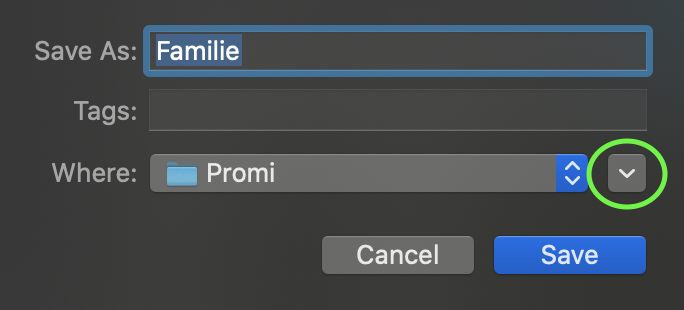
If you do not find the desired storage location in the menu below the file name, click on the button outlined in green to expand the save dialog:

Extend data export dialog in Kairon4

ad 2) Back up the automatic database

You can also save the internally secured, hidden database. This can be found in your local library at:

~/Library/Containers/com.Kairon.Kairon4/Data/Library/Application\ Support/Kairon4/Kairon.*

This is not recommended because we have no control over the data format. Apple reserves the right to change this at any time, so there is no guarantee that you will be able to open data saved in this way ten years later – unless you use the exact same version of Kairon that was used to save it.

Still, it may be interesting to know where the data is, and this information is useful for short-term experiments.

January 17, 2020/0 Comments/by admin
https://kairon.at/Kairon4/wp-content/uploads/2024/06/LogoKairon4_text-2-300x138.png 0 0 admin https://kairon.at/Kairon4/wp-content/uploads/2024/06/LogoKairon4_text-2-300x138.png admin2020-01-17 23:59:142020-03-22 22:03:16Backup
Basics, Manuals

Data Structure

Categories

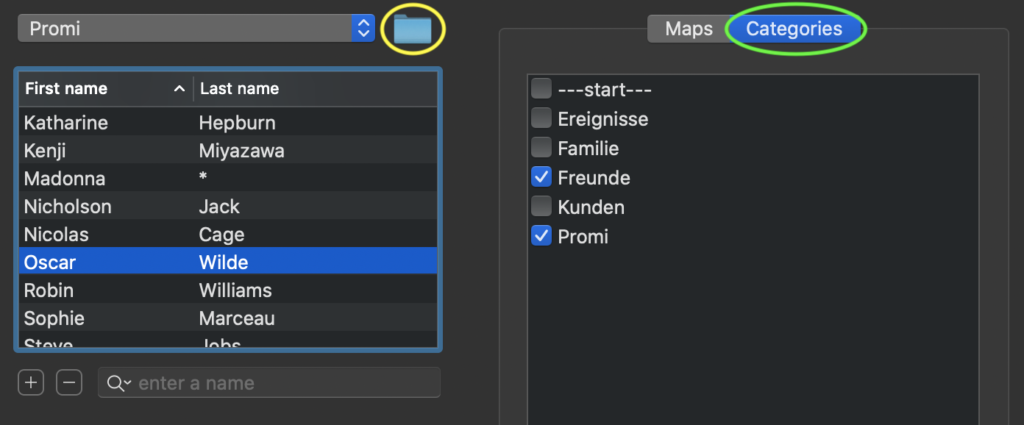
In order to organize your data more easily, Kairon4 provides the possibility in the data entry dialog to create any number of categories.

Organize Categories in Kairon4

With the yellow circled button the categories can be switched on and off, by clicking on the green circled tab they are also visible.

Classify into categories

First select a horoscope, then mark all the categories in which the horoscope should appear. Continue until you have all the horoscopes where you want them. A horoscope can appear in any number of categories.

Delete records

To delete a horoscope, please select the horoscope and click below the list of horoscopes on [-] and then confirm the dialog by clicking on “Delete” (or “Keep” if meanwhile you changed your mind).
Deletion cannot be undone.

Multiple selection is possible when deleting, in such a case all selected horoscopes will be irrevocably deleted after confirming the dialog box.

If you want to delete all horoscopes in a category, the easiest way is to select a single one of the horoscopes and then choose Cmd-a before clicking on [-]. Do not just delete the category, otherwise the horoscopes will no longer be visible, but will still occupy the storage space.

Editing categories

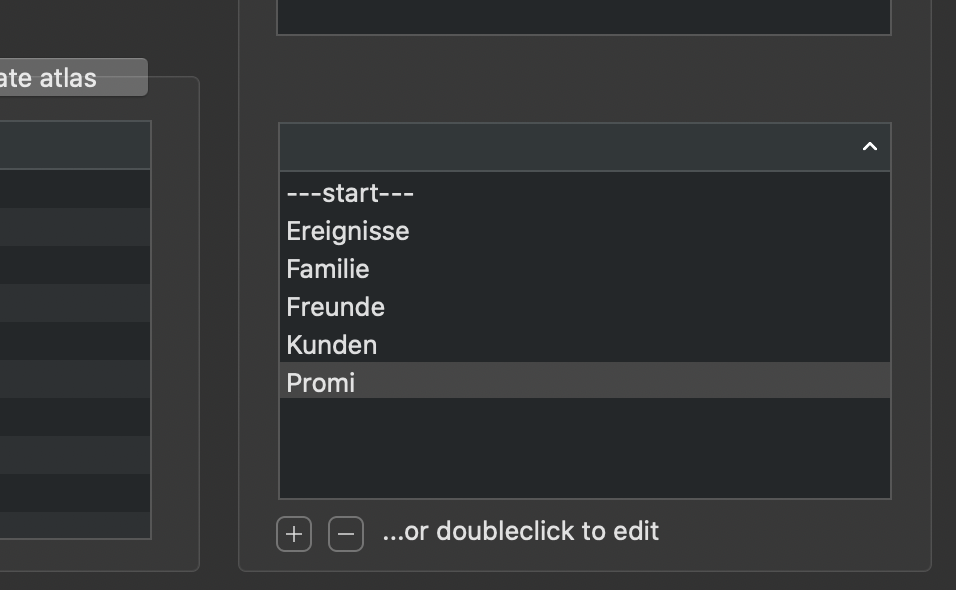
In the selection list to the right of the atlas you can create, rename and delete categories.

Editing categories in Kairon4

Create a New Category

Click on [+] and then rename the category.

Rename a category

Categories can be edited by double-clicking. You can then write the desired name directly in the list.

Delete a category

Select the category you want to delete from the list below and then click on [-]. Please make sure that you first assign any horoscopes in this category to one or more other categories so that they are not lost.

January 16, 2020/0 Comments/by admin
https://kairon.at/Kairon4/wp-content/uploads/2024/06/LogoKairon4_text-2-300x138.png 0 0 admin https://kairon.at/Kairon4/wp-content/uploads/2024/06/LogoKairon4_text-2-300x138.png admin2020-01-16 22:15:222020-03-22 22:03:45Data Structure
Basics, Manuals

Data Import

Kairon 4 is the sequel of Kairon 3.61 which is still available at https://kairon.cc for older Macs.

Data entry

Data can be entered directly, or imported.

Import

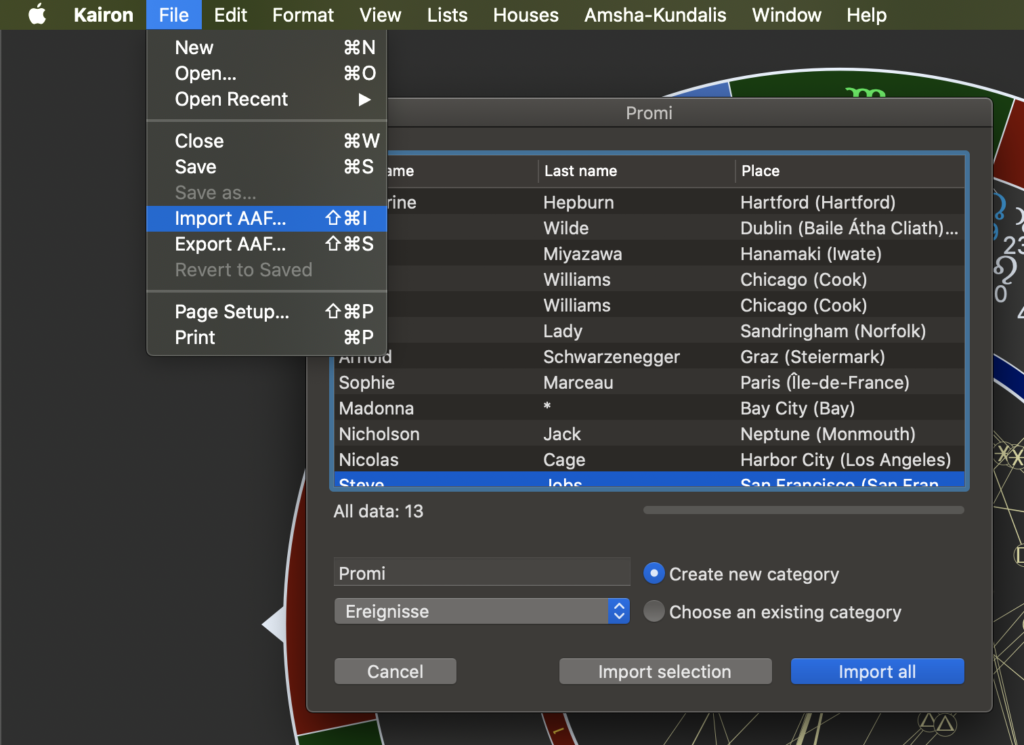
To import existing data, you need .aaf files. AAF is short for Astrological Exchange Format and is also the one and only file-format of Kairon 3.61. Therefore you can import all your existing Kairon-data by means of the import command of the File-menu:

Import into Kairon4

For a better overview, you can classify your horoscopes in Kairon by categories, such as family, friends, customers, celebrities, whatever. During the import you can create a new category or choose an existing one. The name of the file to be imported is always entered as default, but it is advisable to first look in the menu below to see which categories you already have. You can load any selection of horoscopes from a file, or all of them, or cancel the process. To select several horoscopes, hold down either the command key – “command” (for scattered individual selection) or the shift key (for the related selection).

Entry

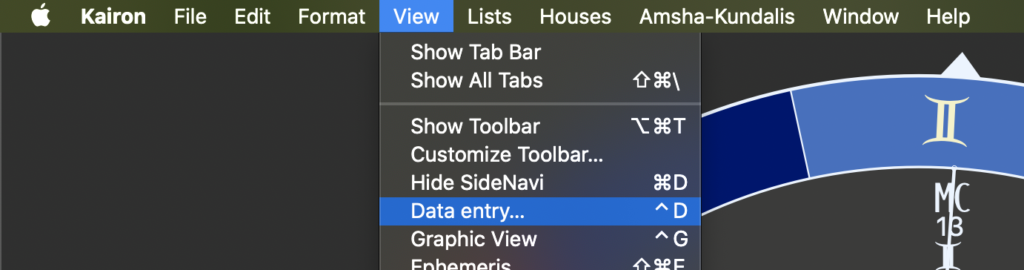
The input dialog is used for data entry: You can always access it via the view menu in the first section – this section reveals the entire program to you. This is good to know, because you can hide all Kairon controls, even the menu bar – it only reappears when you move the mouse pointer to the top of the screen:

Navigate in Kairon4

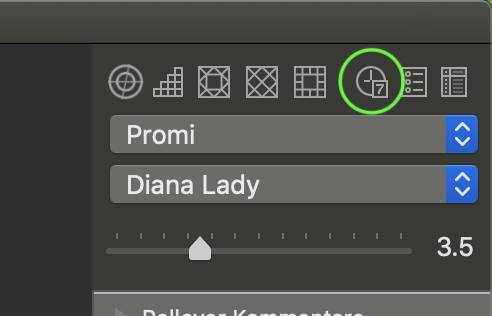
You can also use the calendar icon of the page navigation to enter data: Sidenavigation of Kairon4 The page navigation is in the graphic view at the top right, in the data entry, however, above the name entry.
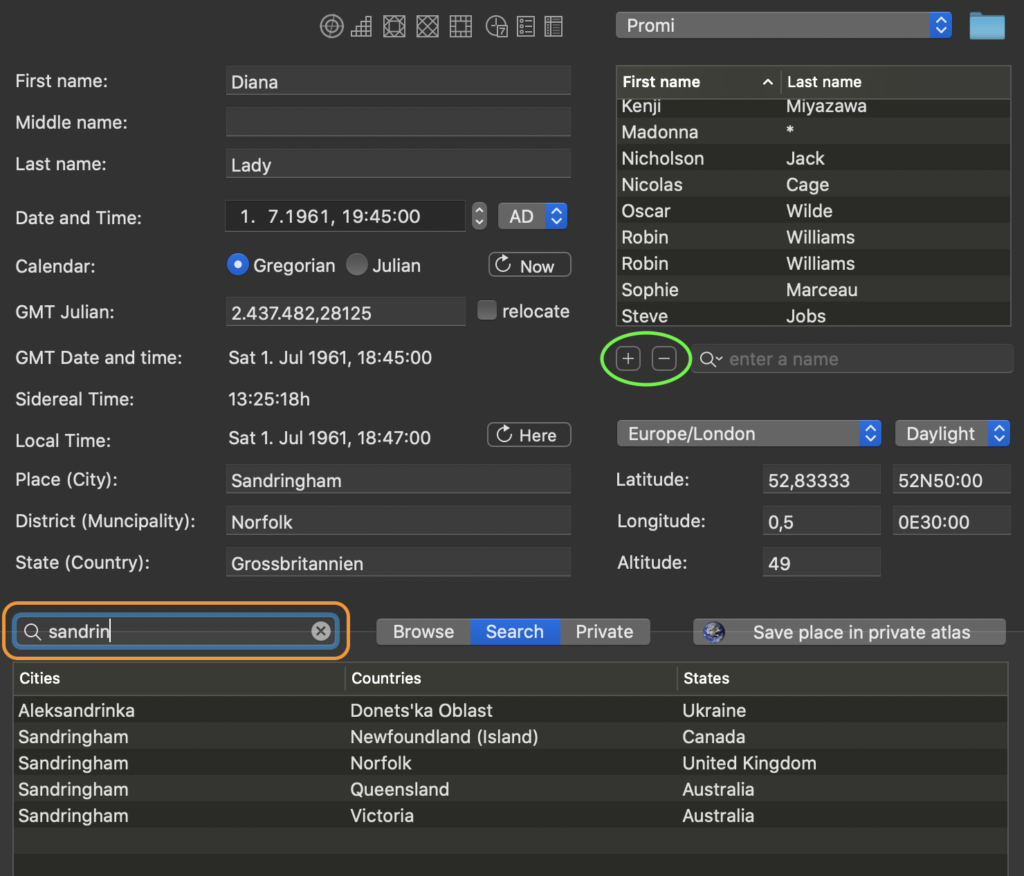

Data entry in Kairon4

Two areas are key-areas:

1. in green oval

[+] creates a new horoscope
[-] deletes the selected horoscope

2. in orange rectangle

Here you enter a significant part of the name of the place, for which you want to cast your chart. Next you select the entry from the list below, which fits the most. In case the automatically selected timezone for the place should not be ok, or the automatically chosen daylight-saving-time, then you can overwrite them.

January 16, 2020/2 Comments/by admin
https://kairon.at/Kairon4/wp-content/uploads/2024/06/LogoKairon4_text-2-300x138.png 0 0 admin https://kairon.at/Kairon4/wp-content/uploads/2024/06/LogoKairon4_text-2-300x138.png admin2020-01-16 00:26:202020-03-22 22:04:10Data Import
Page 2 of 212

Tutorials

  • Videotutorials
  • Data Structure
  • Data Import
  • Backup
  • Kairon 4 from the beginning
  • Basics of data entry
  • First settings
  • Selecting Objects in Kairon 4
  • About those Aspects
  • Colours: The last of the ‘set up’ help files.
  • Back to the Settings Menu
  • Custom Symbols
  • Synastries
  • Asteroids
  • Midpoint-Trees
  • Helptexts and Interpretations
  • AI Interpretation

Company

Mag. Kilian Sternad
Hochstraße 11/14
1230 Wien

Legal

  • GDPR
  • Imprint
  • Contact

Archive

  • February 2026 (1)
  • November 2024 (1)
  • August 2023 (1)
  • April 2020 (1)
  • March 2020 (9)
  • January 2020 (3)
  • December 2019 (1)

Language

  • English
  • Deutsch
© Kairon K.S.
  • Link to Facebook
  • GDPR
  • Imprint
  • Contact
Scroll to top Scroll to top Scroll to top

Diese Seite verwendet Cookies. Mit der Weiternutzung der Seite, stimmst du die Verwendung von Cookies zu.

Einstellungen akzeptierenVerberge nur die BenachrichtigungEinstellungen

Cookie and Privacy Settings


How we use cookies

We may request cookies to be set on your device. We use cookies to let us know when you visit our websites, how you interact with us, to enrich your user experience, and to customize your relationship with our website.

Click on the different category headings to find out more. You can also change some of your preferences. Note that blocking some types of cookies may impact your experience on our websites and the services we are able to offer.

Essential Website Cookies

These cookies are strictly necessary to provide you with services available through our website and to use some of its features.

Because these cookies are strictly necessary to deliver the website, refusing them will have impact how our site functions. You always can block or delete cookies by changing your browser settings and force blocking all cookies on this website. But this will always prompt you to accept/refuse cookies when revisiting our site.

We fully respect if you want to refuse cookies but to avoid asking you again and again kindly allow us to store a cookie for that. You are free to opt out any time or opt in for other cookies to get a better experience. If you refuse cookies we will remove all set cookies in our domain.

We provide you with a list of stored cookies on your computer in our domain so you can check what we stored. Due to security reasons we are not able to show or modify cookies from other domains. You can check these in your browser security settings.

Other external services

We also use different external services like Google Webfonts, Google Maps, and external Video providers. Since these providers may collect personal data like your IP address we allow you to block them here. Please be aware that this might heavily reduce the functionality and appearance of our site. Changes will take effect once you reload the page.

Google Webfont Settings:

Google Map Settings:

Google reCaptcha Settings:

Vimeo and Youtube video embeds:

Einstellungen akzeptierenVerberge nur die Benachrichtigung