Since version 4.24, Kairon includes an integrated AI tutor that not only interprets horoscopes, but can also be an excellent astrology teacher—provided we ask the right questions and keep a watchful eye on its reasoning.
In the Text section under Text Generator, Kairon now provides a new button labeled [AI Prompt], which supports two different operating modes depending on your preference.
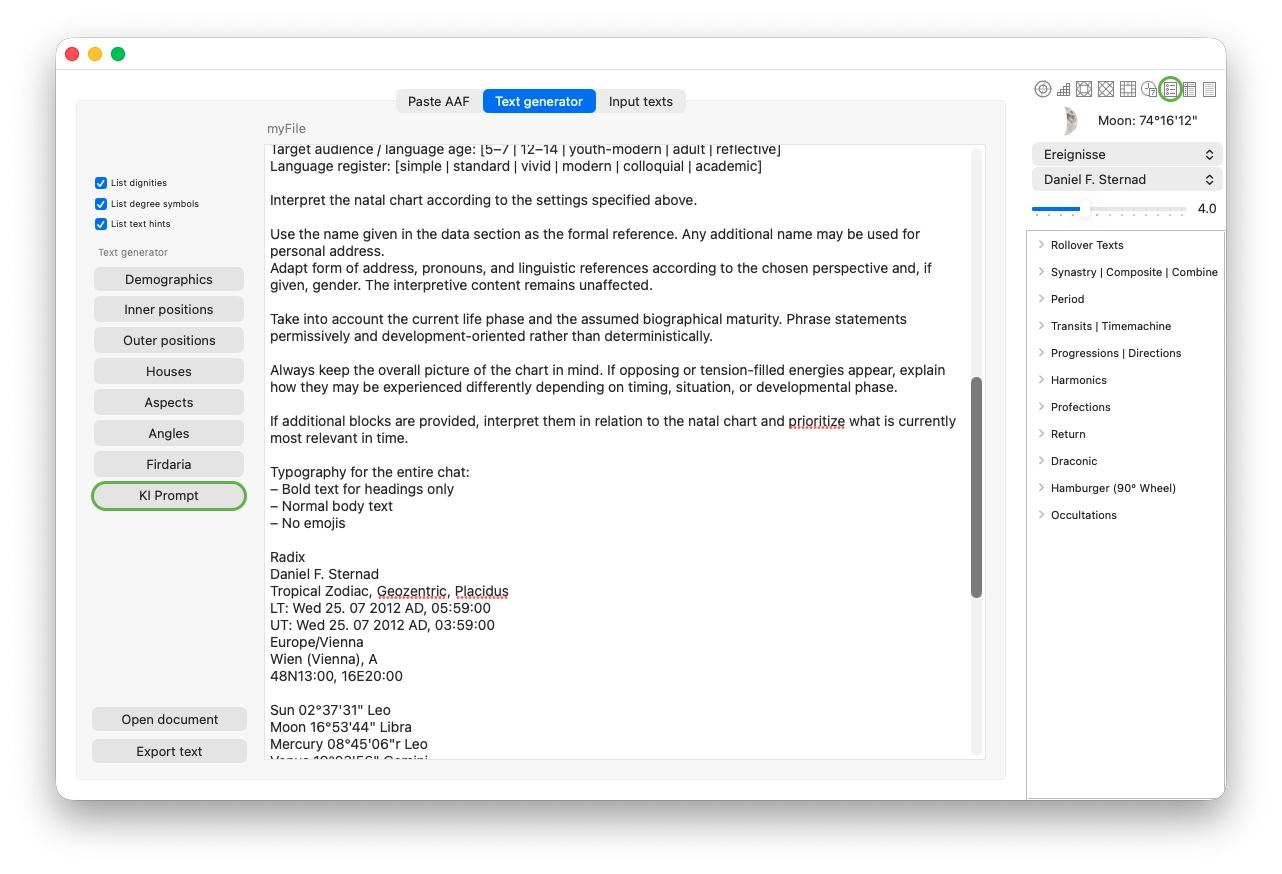
Without making any further settings, the button operates in Prompt-Only mode.
In this mode, a text block is generated that can be pasted into any chatbot, such as ChatGPT, Claude, Gemini, Copilot, or others. These systems will then produce an interpretation of the data—completely free of charge. You can then refine this interpretation, ask follow-up questions, edit it, and use it as a foundation for a client consultation.
A simple instruction such as “Write for a 12-year-old boy” fundamentally changes the output, and it is highly recommended to experiment extensively with different instructions.
Clicking [AI Prompt] (outlined in green here) returns the current data you last worked with. This means that if transits are still active, they will automatically be included in the prompt, and the AI will take them into account in its interpretation.
You can then ask follow-up questions based on the returned interpretation, request deeper exploration of specific topics, and continue refining the discussion. It is like having a conversation with an experienced astrologer—except it costs nothing, requires no appointment, and allows you to take as much time as you wish. If you are using a service with a login, your session will be saved, and you can resume the discussion at any time simply by opening the same link again.
Editing and saving your prompt
You will quickly want to create your own prompt as a starting template, which you can then adjust slightly depending on the horoscope you are working with.
To do this, click the second green-outlined button in the upper right and switch to the AI tab, as shown:
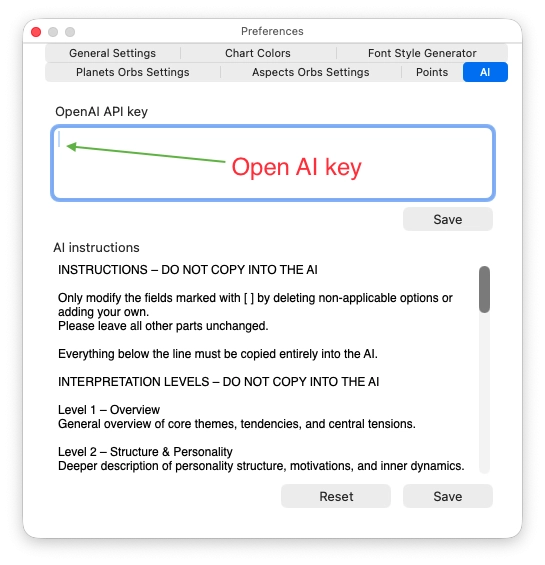
In the lower field labeled AI Instruction, you can save and edit your preferred prompt text. Do not forget to confirm your changes by clicking [Save] below the text field, otherwise your changes will be lost.
If you are unsure, you can click [Reset] at any time to return to the original version. This restores the default prompt provided by me—not your most recently saved version.
Once configured, everything becomes much faster, since you will rarely need to modify the prompt settings again.
Direct AI mode (optional)
There is also a second operating mode available.
To enable it, you must enter your personal API key in the upper field. However, this is not necessary if you only want to generate and edit prompts. The prompt-only mode works automatically without your own key.
When you enter an API key, Kairon can access the AI directly. This is explained in the next section.
Activating the chatbot inside Kairon
Kairon includes an integrated chatbot that allows you to stay within Kairon and save interpretations and conversations directly as formatted text, which can then be opened and edited in standard text editors.
To use this feature, you must enter your personal OpenAI API key in the upper dialog field. Once the key is present, clicking [AI Prompt] will automatically open a dedicated chat window, as the button switches to its second mode:
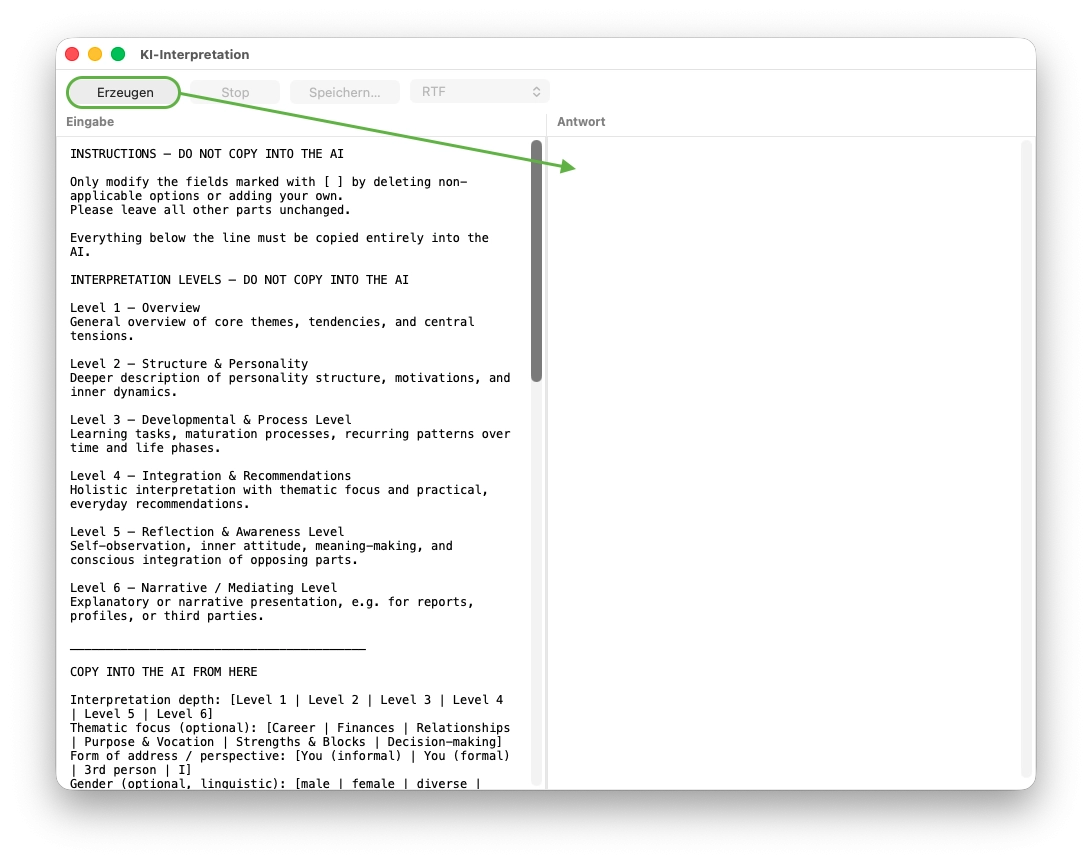
The advantage of this chat window is that you no longer need to leave Kairon. You can watch the interpretation being generated live, without delays, and easily save the complete text afterward—regardless of its length.
How to obtain an OpenAI API key
Open the website:
Sign in or create a new account.
Then select Billing from the navigation menu on the left and add a payment method.
It is not necessary to preload credit. Billing is usage-based and typically amounts to about 3 to 5 cents per interpretation. These charges are billed by OpenAI and do not go to Kairon.
Next, go to API keys in the navigation menu and click Create new secret key. Copy the displayed key.
In Kairon, open the dialog Settings:AI (see middle image on this page) and paste the key into the field OpenAI API key.
The AI interpretation feature will then be immediately available.
Available capabilities
You can now type your questions in the left panel of the chat window (under Input), click [Generate], and the response will appear live in the right panel without delay.
You can discuss individual planetary placements, explore alternative interpretive methods, ask general astrology questions, and extend the conversation as far and as long as you wish.
This gives you live interpretations in any writing style you choose. You can also translate interpretations instantly or conduct the conversation in any language supported by the AI—simply try it.
Beautiful and meaningful gifts can be created in minutes, such as Solar or Lunar interpretations, written in a serious tone, humorously, or even exaggerated for creative effect. The AI draws on extensive knowledge while remaining fully open to your creativity.


